Browsing Synology Hyper Backup Data without Access to the NAS
homelab SynologyA backup is only useful if you know how to access it in an emergency. Browsing a backup created with Synology Hyper Backup—without access to the NAS itself—is not as obvious as you might expect.
Browsing the backup via the NAS
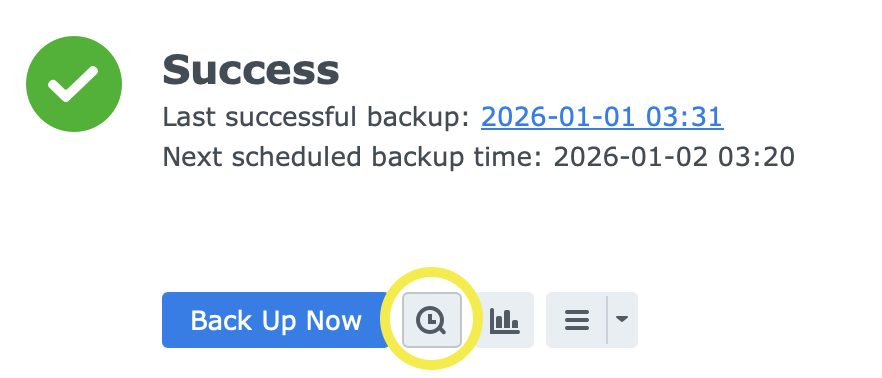
If you still have access to the NAS, you can browse backup data via the Hyper Backup UI itself. Clicking the small magnifying glass opens up the backup explorer.
🔐 If you have client-side encryption enabled—which you should!—you will need to know the encryption key.
Browsing the backup without access to the NAS
There are various situations in which you will no longer have access to the NAS itself. In these cases, you can use the Synology Hyper Backup Explorer.
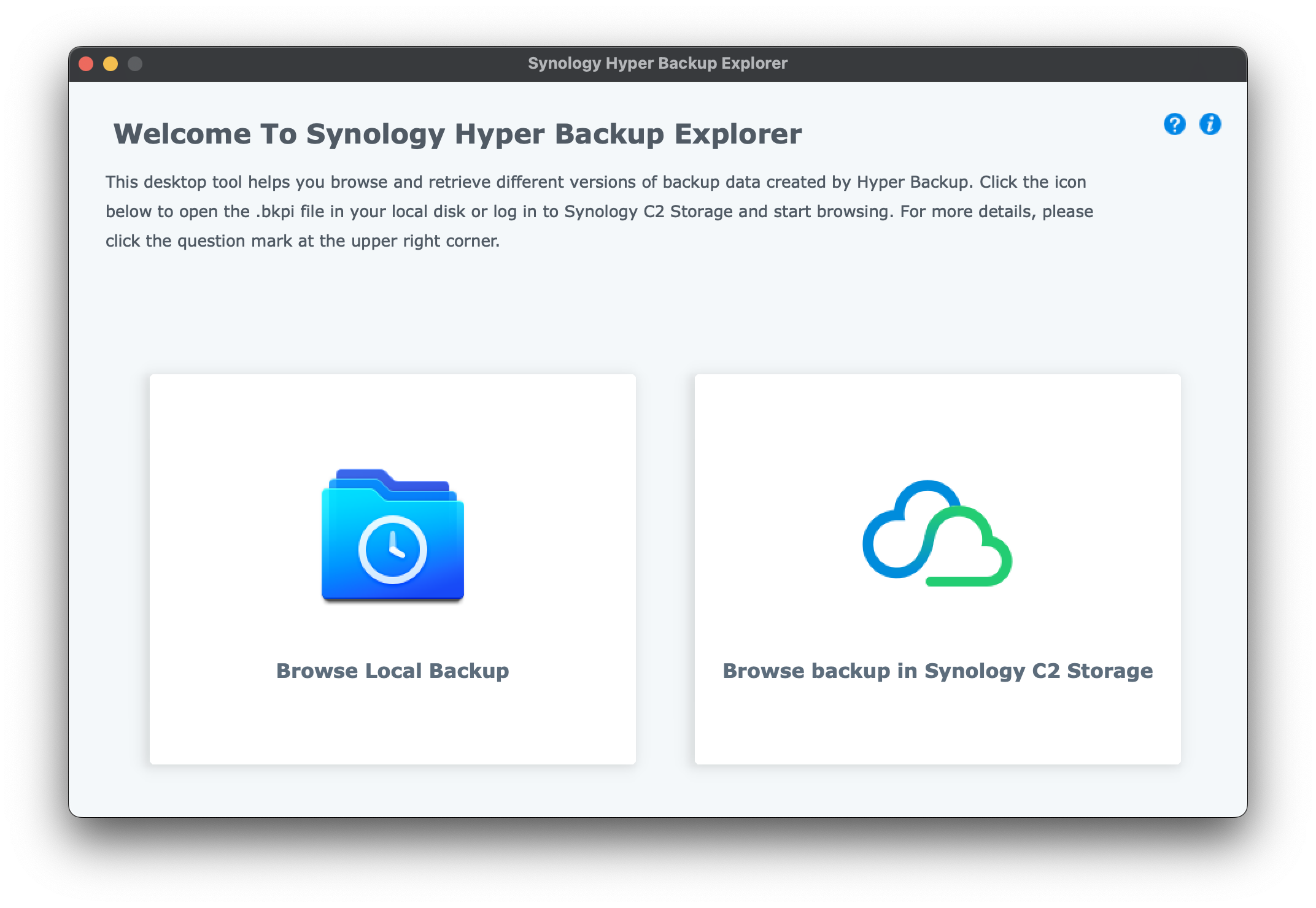
As you can see from the screenshot above, if your backup is not in Synology's C2, then the backup data must be available locally. You might be able to download your whole backup from the cloud storage provider. However, if you backup is large (mine is tens of terabytes!) then this might not be practical.
Mounting cloud storage using Mountain Duck
Mountain Duck lets you mount cloud storage as if it were a local drive in Finder (Mac OS) or File Explorer (Windows).
The following cloud services are supported:
- S3 Storage (any Amazon S3-compatible service, including Backblaze B2)
- Google Drive
- Dropbox
- Microsoft Azure
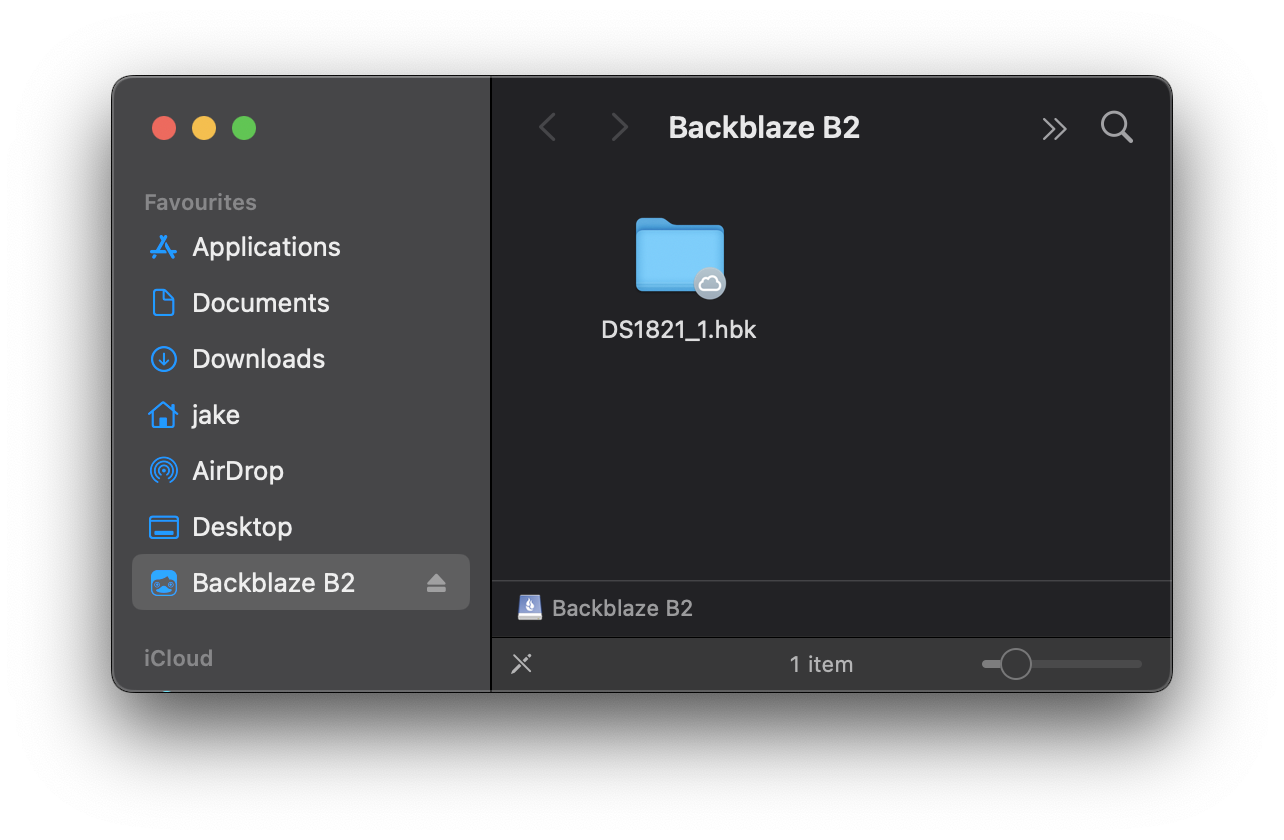
In my case, this lets me mount a Backblaze B2 bucket as a local volume.
Synology Hyper Backup Explorer is happy to open the .bkpi file directly from the mounted volume.
Conclusion
It's slightly annoying that the Backup Explorer requires a local copy of the backup data. Using Mountain Duck is not official Synology advice, but it seems to work well for me.
Please leave a comment below if you have any other suggestions!